 CronMon
Help
Thanks for buying CronMon
Your license key is in the email from Polar. Open CronMon from the menu bar, choose License… from the gear menu, and paste the key. One key activates three Macs; manage activations in the customer portal.
Thanks for renewing
Your existing key now includes another twelve months of updates. Nothing to paste; CronMon picks it up the next time it validates the key.
Install
Download CronMon.dmg, drag CronMon to Applications, and open it. CronMon lives in the menu bar; there is no Dock icon. With Homebrew: brew tap suresk/tap && brew install --cask suresk/tap/cronmon. It needs macOS 14 or later, asks for no password, and installs nothing in the background.
The first run
Click the clock icon in the menu bar. CronMon reads your crontab with crontab -l, reads the launchd property lists in ~/Library/LaunchAgents, /Library/LaunchAgents, /Library/LaunchDaemons and the two /System directories, keeps the ones with a StartCalendarInterval or a StartInterval, and asks launchctl print what state each one is in. That takes a moment the first time and happens again whenever you open the popover, whenever one of those directories changes, and when you pick Refresh. There is no timer and nothing runs in the background except the cron watcher described below; a cron run CronMon sees while it is open updates that job's row on its own, without another scan.
macOS schedules hundreds of its own agents and daemons. They are hidden until you turn on Include the jobs that ship with macOS in Settings, and they stay read-only.
Reading the popover
- The summary line counts the jobs and names the next one due.
- Next up is the five closest runs in the window, each with how long until it fires and its schedule in plain English. Click one to select its job.
- The strip draws a dot for every run in the window over an axis marked in hours. Hover a dot to see which job it is, click to select it.
- The list groups jobs by where they came from — your crontab, launch agents, launch daemons — with the schedule in words, the next run, and a badge when a job is disabled, failing, or missing its executable.
- Search filters by name and by command. Arrow keys move the selection, Return opens the selected job, Escape clears the search.
If the header says "cron isn't running", that is usually fine: launchd only starts cron once a crontab exists, so a Mac with no crontab has no cron process. The line says which case you are in.
The job detail window
Return, or Open Job, opens a window for the selected job: the schedule in plain English beside the raw expression, the next five runs, the full command with a Copy button, the file it came from with Reveal in Finder and Open, anything CronMon thinks is worth knowing about it, and its history. For your own cron jobs there are also Edit… and Delete… buttons. For a launch agent scheduled with StartInterval rather than a calendar, the next runs are marked approximate: launchd counts the interval from when it loaded the job, which CronMon cannot see.
History is labeled by where it came from. For a launch agent the section is headed What launchd reports: the run count, the last run and the last exit code, straight from launchctl print. For a cron job it is headed What CronMon has seen, because nothing on macOS records cron runs — there are no cron entries in the unified log at any level. CronMon watches the cron process while CronMon is running and lists the runs it saw, with the date it started watching. Turn on Launch CronMon at login in Settings so it sees the ones that happen before you open it. If cron mailed the job's output, the last message from /var/mail/ is shown underneath.
Add and edit jobs
CronMon edits your own crontab, and only that: launchd agents and daemons are read-only, and so is anything that ships with macOS.
Where it starts. Add Job… is in the Your crontab heading in the popover and in the gear menu. Edit… and Delete… are in the detail window, on your own crontab lines; Delete asks first and names the line it is about to take out. Crontab Settings…, in the gear menu, is described at the end of this section.
The schedule. The Runs menu offers the shapes people actually write: Every N minutes, Every N hours, Daily, Weekly, Monthly, At reboot, and Custom. The minute step only offers numbers that divide 60, because cron restarts the count at the top of every hour — */7 fires at :56 and then again four minutes later, which is not what "every 7 minutes" promises. An hour step that does not divide 24 is labeled from midnight for the same reason: cron restarts the count at midnight, so the last gap of the day is short.
The expression is always there. The five fields cron will read sit under the controls and can be typed in directly. Edit them and the controls follow; move the controls and the expression is rewritten. An expression no shape matches simply reads Custom and is kept exactly as you typed it. Under both, the schedule in plain English and the next five runs, so "did I mean that?" is answered before you save.
Comment and Enabled. The comment is written as a # line directly above the job and read back from there when you open it again. The Enabled toggle is the same switch as Disable: off writes the line with #CRONMON-DISABLED in front of it, so the job stays in your crontab where you can find it.
What CronMon warns about while you type. The same checks the list runs, on the entry as it stands: a command that is not on cron's PATH, an executable that is not there, a job that needs Full Disk Access for cron, output going to a mailbox nobody reads, an unescaped %, and a schedule that fires on no date in the next five years. A red item — an expression cron cannot parse, or no command at all — blocks Save. An orange one does not: cron will run the job either way, and you may know something CronMon does not.
Saving. Adding, editing, deleting and changing the crontab settings need a license, the same as Disable; during the 14-day trial everything is unlocked. Every save writes a copy of your whole crontab to ~/Library/Application Support/CronMon/crontab-backups/ first, then installs the new text, then reads it back and refuses to call it done unless it matches. The lines you did not touch come back byte for byte, trailing whitespace and blank lines included. If that line is no longer the job you opened — something else edited the crontab in between — the save is refused with "That line is no longer the job you selected. Refresh and try again." rather than applied to the wrong line.
A crontab CronMon will not rewrite. If your crontab contains bytes that are not text, CronMon still reads it and still lists the jobs, but every write is refused before anything is backed up or installed: "CronMon cannot safely rewrite this crontab: it contains bytes that are not text. Edit it with crontab -e." Rewriting it would mean replacing bytes CronMon cannot see.
Crontab Settings. Crontab Settings… edits the two lines at the top of your crontab that apply to every job below them: MAILTO, the address cron mails a job's output to — MAILTO="" throws it away — and PATH, where cron looks for a command written as a bare name. Leave a field empty to take that line out of the crontab altogether. It is written through the same backup, write and verify path, and its fields are filled from the crontab again every time the window opens, so it never offers to write back a value something else has since changed.
Run now
For a cron job, Run Now runs the command the way cron does: through /bin/sh -c, or through your crontab's SHELL if it sets one, with the environment cron would have given it — PATH=/usr/bin:/bin unless your crontab sets one, plus HOME, SHELL and your user name — and files what it printed as a run you can read in the history, marked as started by you. For a launch agent it asks launchd to start the job with launchctl kickstart. Launch daemons and anything under /System cannot be started this way yet and say so.
cron reads the line before the shell does, and Run Now reads it the same way. The first % without a backslash ends the command; everything after it is fed to the job on standard input, with each further % a new line. So date +%Y runs date + and hands it a "Y", on schedule and under Run Now alike, which is how you find out before 3 a.m. does. Write \% for a literal percent. One more that the manual leaves out: cron also turns \\ into a single backslash. CronMon warns about an unescaped % wherever it finds one.
Disable and enable
For a cron job, Disable comments out exactly one line by putting #CRONMON-DISABLED in front of it, and Enable takes that marker off again. Before either, CronMon writes a copy of your whole crontab to ~/Library/Application Support/CronMon/crontab-backups/, named with the time; afterwards it reads the crontab back and checks the line is what it expected. Nothing else in the file changes — comments, blank lines and environment lines come back byte for byte. A disabled line stays in the list with a badge, so you can put it back.
The first time CronMon writes your crontab — disabling a job, or saving one from the editor — macOS asks whether CronMon "would like to administer your computer", and warns that administration can include modifying passwords, networking and system settings. That is macOS's standard prompt for /usr/bin/crontab, which is installed setuid root so that it can write into the crontab spool directory — you get the same prompt the first time your terminal writes a crontab. CronMon only ever writes your own crontab, and only after saving a backup of it. If you decline, or leave the prompt sitting there, CronMon gives up after twelve seconds and says so: "crontab did not respond within 12 seconds; your crontab may or may not have changed. The previous version is saved at …", naming the backup file it wrote before it started. That is the one case where CronMon cannot tell you whether the change went in, which is why the backup path is in the message.
For a launch agent, Disable is launchctl bootout and Enable is launchctl bootstrap. CronMon will not load or unload macOS's own jobs, and daemons need more privilege than CronMon has.
Give cron Full Disk Access
A cron job that touches ~/Desktop, ~/Documents, ~/Downloads or a volume under /Volumes fails with "Operation not permitted" until macOS is told to let cron in. CronMon flags those jobs; here is the fix:
- Open System Settings › Privacy & Security › Full Disk Access.
- Click +. In the file chooser press ⇧⌘G and type
/usr/sbin/cron. - Choose
cronand switch it on.
The permission applies to the cron daemon, not to your script, and it takes effect on the job's next run. It is per-Mac and survives updates. There is a longer guide with the ways it goes wrong.
Settings
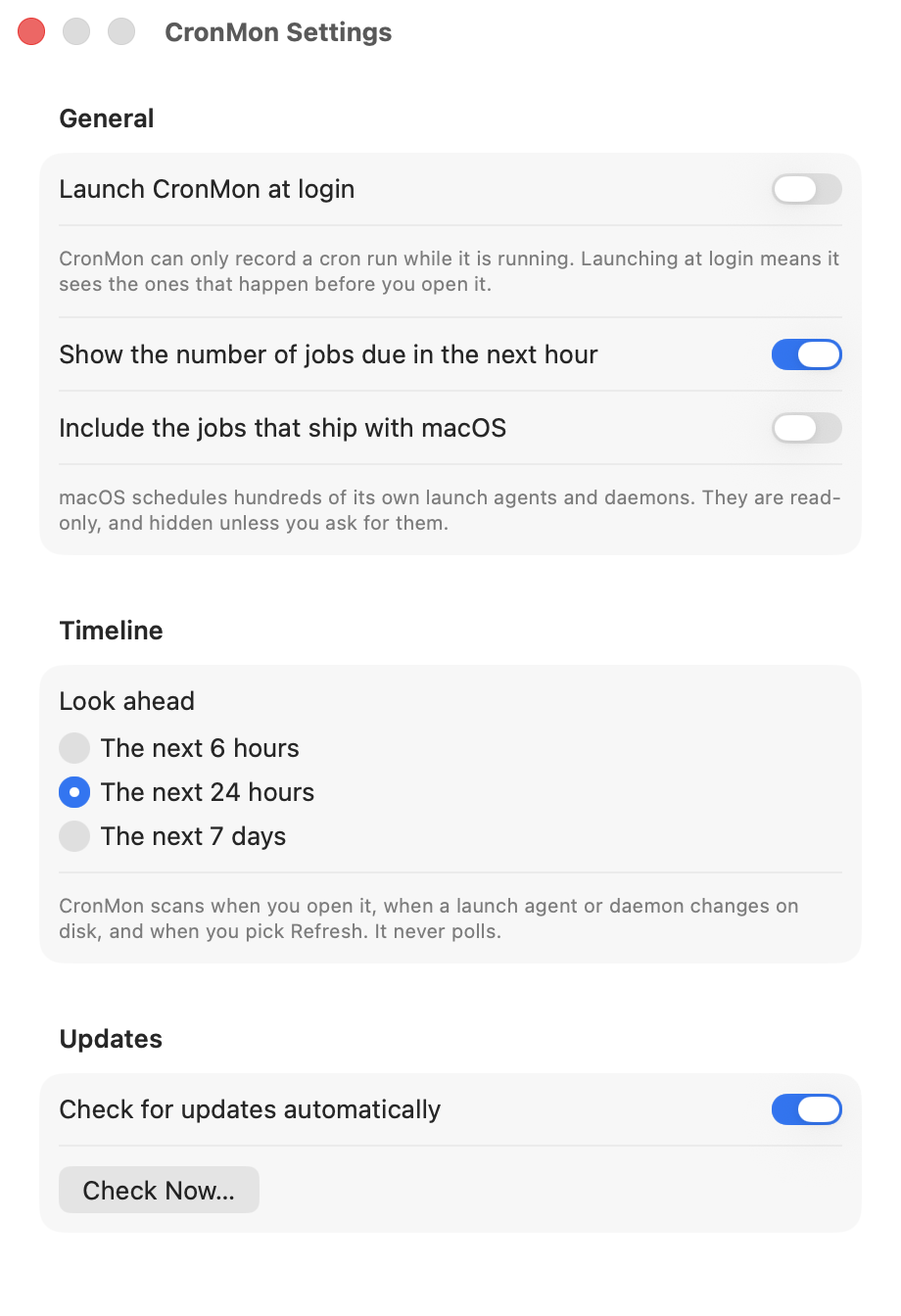
Launch at login; show the number of jobs due in the next hour in the menu bar; include the jobs that ship with macOS; look ahead 6 hours, 24 hours or 7 days; check for updates automatically.
Copy Summary
Copy Summary, in the gear menu and in the detail window, puts the list as you have it on screen on the clipboard as plain text: the summary line, what is coming up, and a row per job with its schedule, next run and state. It is not gated by the license — it copies what is already in front of you.
License
The 14-day trial is unrestricted. When it ends everything stays visible; running jobs now, enabling or disabling them, and adding, editing or deleting cron entries need a license. Buy one at polar.sh for $19.99, then paste the key into CronMon › License… One key activates three Macs; free one from the customer portal. A license includes a year of updates; after that the app keeps working and a renewal is $9/year.
Uninstalling
Quit CronMon from the gear menu and drag it to the Trash. Nothing is left running: CronMon installs no background service and adds nothing to your crontab or to launchd beyond the Launch at login registration, which goes with the app. With Homebrew, brew uninstall --cask cronmon; brew uninstall --zap --cask cronmon also removes preferences and ~/Library/Application Support/CronMon, which is where the crontab backups live — copy them out first if you want to keep them.
If you disabled cron jobs with CronMon and want them back, enable them before you uninstall, or take the #CRONMON-DISABLED marker off the lines yourself with crontab -e.
Something else?
Email [email protected], or open an issue at github.com/suresk/cronmon/issues. The Copy Summary text is the most useful thing to include.