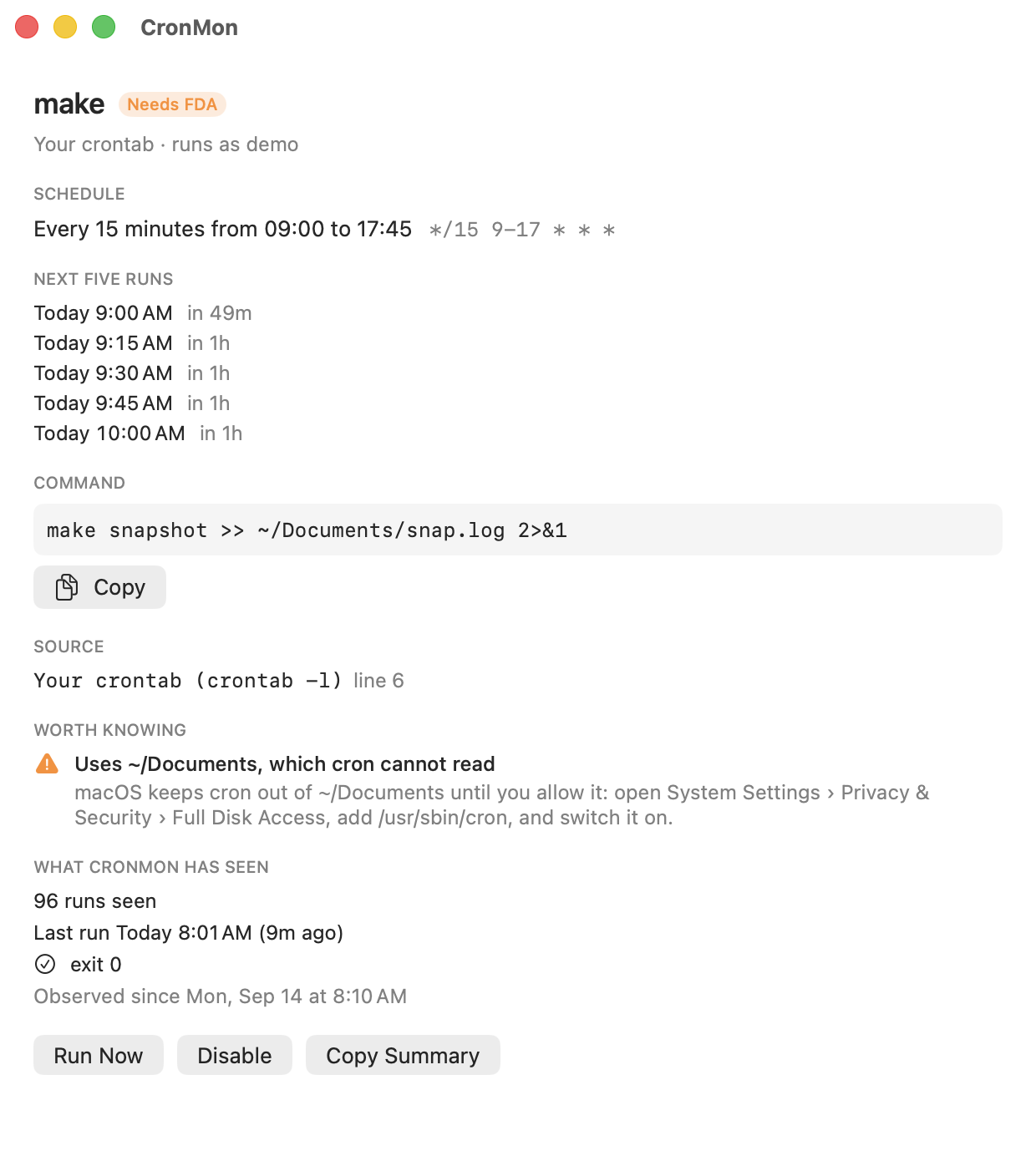
CronMon
cron: Operation not permitted on macOS
The fix
- Open System Settings › Privacy & Security › Full Disk Access.
- Click +. An authentication prompt appears; unlock it.
- In the file chooser press ⇧⌘G (Go to Folder) and type /usr/sbin/cron, then Return.
- Choose cron and click Open.
- Make sure the new cron row is switched on.
- Wait for the job's next run, or run the command by hand to confirm.
The chooser hides /usr/sbin by default, which is why step 3 uses Go to Folder. You are adding the cron daemon itself, not your script and not Terminal.
Why it is needed
macOS protects some folders behind TCC, the permission system that also guards the camera and the microphone. The protected set includes ~/Desktop, ~/Documents, ~/Downloads, iCloud Drive, Photos, Mail, Messages, Time Machine backups, and removable volumes under /Volumes.
TCC asks who is responsible for the access. When you run a script in Terminal, that is Terminal, which is why the same script works when you paste it in and macOS prompts you once. When cron runs it there is nobody to prompt: cron is a background daemon started by launchd, so the access is simply refused and your script gets Operation not permitted, EPERM, or in Python a PermissionError. Adding cron to Full Disk Access is how you answer that prompt in advance.
Check it worked
Put a one-minute job in your crontab that reads a protected folder and writes the result where anyone can read it:
* * * * * /bin/ls ~/Documents > /tmp/fda-test.log 2>&1Wait two minutes, then look:
cat /tmp/fda-test.logA listing means the permission is in place. ls: /Users/you/Documents: Operation not permitted means it is not. Take the test line out again when you are done.
When it still fails
- The row is off. Adding an item does not switch it on in every macOS version. Check the toggle.
- You added the wrong thing. /usr/sbin/cron is the daemon. /usr/bin/crontab is the editor front end and grants nothing.
- The permission has not been picked up. The cron process that is already running keeps the access it started with. It exits when it has nothing to do; the simplest reset is to log out and back in, or restart.
- The path goes through a symlink or an alias. A job reading /Users/you/Documents and one reading a symlink into it are both covered, but a path inside an encrypted disk image only works while the image is mounted.
- It is a launchd agent, not cron. Adding cron does nothing for it. TCC attributes the access to the program launchd starts, so that program — the interpreter or binary named in ProgramArguments — is the one to add.
Taking the permission away again
Full Disk Access for cron applies to every cron job on the Mac, yours and anyone else's, so it is worth removing when the job that needed it is gone. Select the cron row in that list and click −, or just switch it off. Nothing else depends on it; cron keeps running, and only the jobs that reach into protected folders start failing again.
The alternative: do not use a protected folder
Nothing under ~/Library, /tmp, /usr/local or a folder you made yourself at the top of your home directory is protected. A backup script that reads ~/src and writes ~/backups needs no permission at all. If the data has to live in Documents, Full Disk Access is the only way.
Or be told before the job fails
CronMon reads the command of every cron job on your Mac and flags the ones that touch Desktop, Documents, Downloads or a removable volume, with the System Settings path to fix it. It shows the same warning for a launchd agent, against the program that agent runs.