CronMon
launchctl: Load failed: 5: Input/output error
What the error means
$ launchctl load ~/Library/LaunchAgents/com.example.daily.plist
Load failed: 5: Input/output error
Try running `launchctl bootstrap` as root for richer errors.
Almost nothing. 5 is EIO, and launchctl prints it whenever launchd declines a job, whatever the reason. On macOS 26 the same two lines come back for a property list with a syntax error, one with no Label, a job that is already loaded, and a path that does not exist at all. The hint about root is for daemons; for an agent of your own, launchctl bootstrap gui/$UID … run as yourself answers Bootstrap failed: 5: Input/output error and the same advice. The number will not tell you what is wrong. The five checks below will, in the order they are likely.
1. It is already loaded
The most common cause, and the one you hit after editing a property list and loading it “again”: launchd will not take a second copy. Ask whether it is there, using the Label string from inside the file (usually, but not always, the file name without .plist):
launchctl print gui/$UID/com.example.daily | head -5If that prints path = and state = lines, the job is loaded. If it says Could not find service "com.example.daily" in domain for user gui: 501, it is not, and the cause is further down. To pick up an edited file, unload it and load it again:
launchctl bootout gui/$UID/com.example.daily
launchctl bootstrap gui/$UID ~/Library/LaunchAgents/com.example.daily.plist
2. The property list does not parse
plutil -lint ~/Library/LaunchAgents/com.example.daily.plistIt prints OK or the line with the problem, such as Encountered unexpected character < on line 10 while looking for close tag. The usual suspects are a closing tag missing its /, an & in a path or argument (it has to be & inside XML), and a <string> with no <key> before it.
A file can lint clean and still be refused. Every job needs a Label; ProgramArguments must be an array of strings; the values in StartCalendarInterval must be <integer>, not <string>. plutil -p file.plist prints the file the way launchd will read it, types included, which makes a "Hour" => "9" easy to spot. A known-good file to compare against.
3. It is disabled
An earlier launchctl unload -w or launchctl disable puts the label on a disabled list that launchd keeps across reboots, and that outlives deleting and recreating the file. Look for it:
launchctl print-disabled gui/$UID | grep com.example"com.example.daily" => disabled is the answer; enable it, then load:
launchctl enable gui/$UID/com.example.daily
launchctl bootstrap gui/$UID ~/Library/LaunchAgents/com.example.daily.plist
4. Wrong domain
An agent in ~/Library/LaunchAgents belongs to your login session, the domain gui/501 (id -u prints your number). launchctl load guesses the domain from who is running it, so the same command run with sudo, over an SSH session or from inside another launchd job looks in the wrong place and fails. Name the domain and the guess goes away:
launchctl bootstrap gui/$(id -u) ~/Library/LaunchAgents/com.example.daily.plistDaemons in /Library/LaunchDaemons are the other way round: they live in the system domain and need root.
sudo launchctl bootstrap system /Library/LaunchDaemons/com.example.daemon.plistA daemon loaded without sudo and an agent loaded with it are both error 5.
5. Ownership and permissions
A file in /Library/LaunchDaemons or /Library/LaunchAgents must be owned by root:wheel and writable only by root, or launchd refuses it. The usual way that goes wrong is copying a file you wrote in your home folder, which arrives owned by you:
sudo chown root:wheel /Library/LaunchDaemons/com.example.daemon.plist
sudo chmod 644 /Library/LaunchDaemons/com.example.daemon.plist
Your own ~/Library/LaunchAgents files should be owned by you, and 644 is fine there too.
Use bootstrap and bootout
load and unload are filed under “Legacy subcommands” in man launchctl, and the domain guessing is why. The current commands take the domain explicitly, which removes check 4 entirely:
launchctl bootstrap gui/$UID ~/Library/LaunchAgents/com.example.daily.plist   # load
launchctl bootout gui/$UID/com.example.daily                                  # unload
launchctl kickstart -p gui/$UID/com.example.daily                             # run it now
launchctl print gui/$UID/com.example.daily                                    # state, runs, last exit code
launchctl error 37                                                            # what a number means
When one of them reports a number other than 5 — which mostly happens as root — that number is the reason: 37 is Operation already in progress, 119 is Service is disabled, 122 is Path had bad ownership/permissions and 125 is Domain does not support specified action. launchctl error translates any of them.
It loaded, and still nothing happens
Loading is not running. Once bootstrap succeeds, launchctl list | grep com.example shows a PID while the job runs and its last exit status afterwards. A status of 78 means launchd could not start the program at all: the path in ProgramArguments is wrong, the script is not executable (chmod +x), or its first line names an interpreter that is not there. 127 means the program started and a command inside it was not found, because a launchd job gets PATH=/usr/bin:/bin:/usr/sbin:/sbin and none of your profile. Output goes only where StandardOutPath and StandardErrorPath point; with neither set it is discarded. And a calendar dictionary with a key left out is a wildcard, not a zero, which is the other half of “it loaded but it is wrong” — the wildcard rule.
Or see what launchd thinks of the job
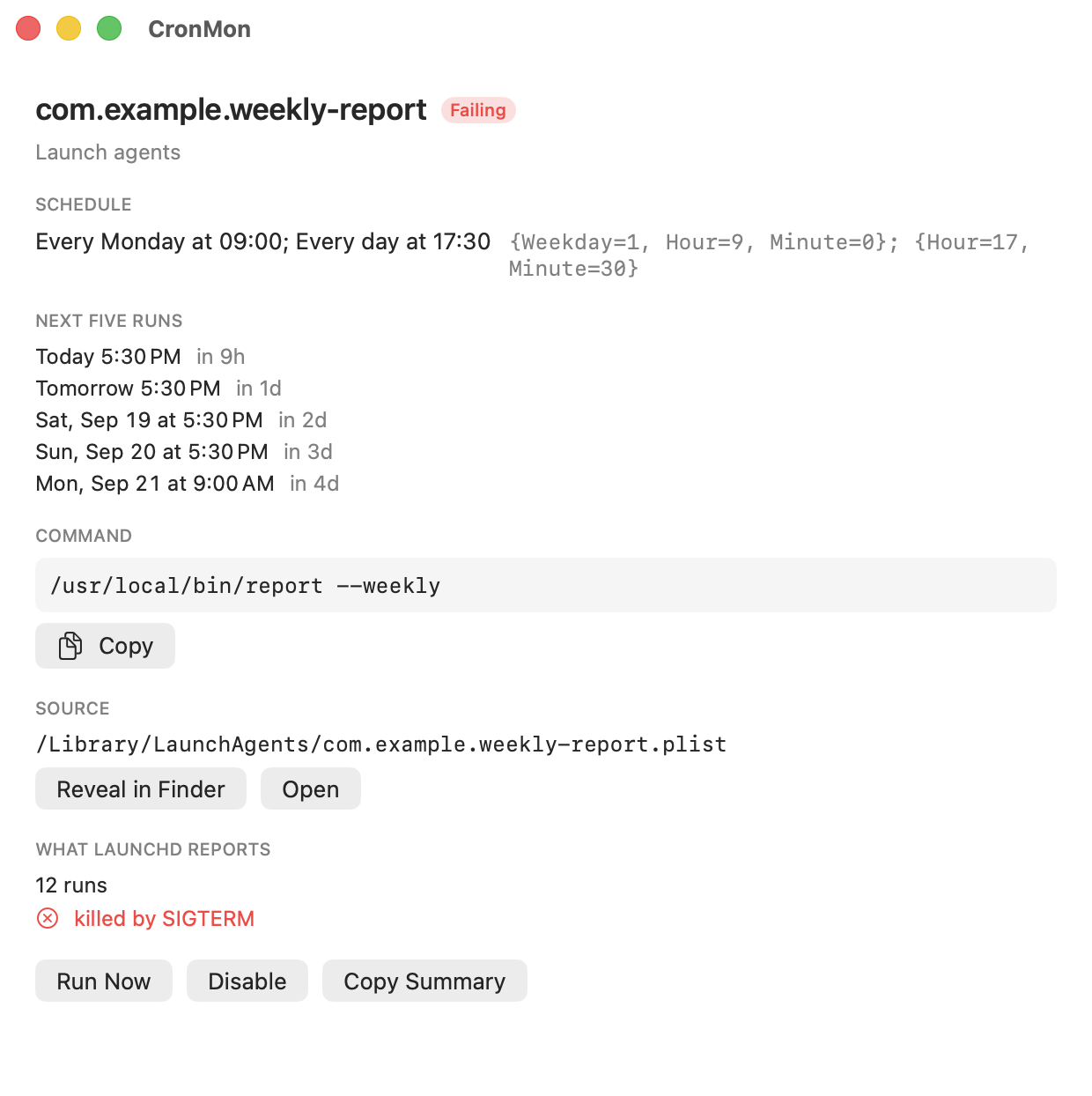
CronMon lists every scheduled launch agent and daemon on your Mac next to your cron jobs, with the schedule written out in English and what launchd reports about it: whether it is loaded or sitting on the disabled list, its run count and the last exit code. It also flags a program that is not where the property list says, or a command that is not on launchd’s PATH, before you go back to the Terminal.