CronMon
Run a script every day on a Mac
First, make the script runnable on its own
chmod +x ~/bin/daily.sh
~/bin/daily.sh
Give it a shebang (#!/bin/sh or #!/usr/bin/env bash) and write every path inside it in full. A scheduled job starts in a bare environment: no shell profile, a short PATH, and a working directory you should not assume.
The quick way: cron
crontab -eAdd one line — this one runs at 07:30 every day:
30 7 * * * /Users/you/bin/daily.sh >> /tmp/daily.log 2>&1Save and quit. crontab -l shows it back. The five fields are minute, hour, day of month, month, day of week. A few more:
| When | Line |
|---|---|
| Every day at 07:30 | 30 7 * * * |
| Weekdays at 09:00 | 0 9 * * 1-5 |
| Every 15 minutes | */15 * * * * |
| Sundays at 02:00 | 0 2 * * 0 |
| First of the month, midnight | 0 0 1 * * |
| Every day at midnight | @daily |
If crontab -e drops you into vi and you cannot get out, press Esc then type :q! and Return — and change the editor before trying again.
The durable way: a launchd agent
cron loses the run if the Mac is asleep at 07:30. launchd runs it on wake instead. Save this as ~/Library/LaunchAgents/com.example.daily.plist:
<?xml version="1.0" encoding="UTF-8"?>
<!DOCTYPE plist PUBLIC "-//Apple//DTD PLIST 1.0//EN"
  "http://www.apple.com/DTDs/PropertyList-1.0.dtd">
<plist version="1.0">
<dict>
  <key>Label</key><string>com.example.daily</string>
  <key>ProgramArguments</key>
  <array><string>/Users/you/bin/daily.sh</string></array>
  <key>StartCalendarInterval</key>
  <dict><key>Hour</key><integer>7</integer><key>Minute</key><integer>30</integer></dict>
  <key>StandardOutPath</key><string>/tmp/daily.log</string>
  <key>StandardErrorPath</key><string>/tmp/daily.log</string>
</dict>
</plist>
Then load it, run it once to be sure, and ask launchd how it went:
launchctl bootstrap gui/$UID ~/Library/LaunchAgents/com.example.daily.plist
launchctl kickstart -p gui/$UID/com.example.daily
launchctl print gui/$UID/com.example.daily
More schedules — weekdays, twice a day, the first of the month — are in the StartCalendarInterval guide, and the cron to launchd converter turns any crontab line into this plist.
The four things that break it
- The command is not on the job's PATH. cron gives a job PATH=/usr/bin:/bin, so nothing from Homebrew is found. Write /opt/homebrew/bin/… in full, or set a PATH line at the top of the crontab.
- The script touches a protected folder. Desktop, Documents, Downloads, iCloud Drive and /Volumes need Full Disk Access for cron, or for the program a launchd agent runs. How to grant it.
- Nobody reads the output. cron mails it to a mailbox no app opens; launchd throws it away unless you name a file. The redirects above are not optional.
- The Mac was asleep. Only launchd catches up. If the job must run on a laptop, use the agent.
Then check it is really scheduled
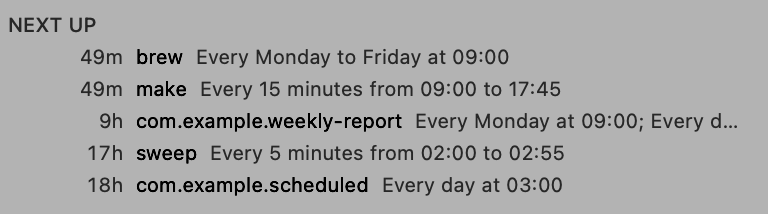
CronMon shows the job you just added next to everything else scheduled on the Mac, with its next five runs worked out from the expression, so you can see that 07:30 means what you think it means before waiting a day to find out.