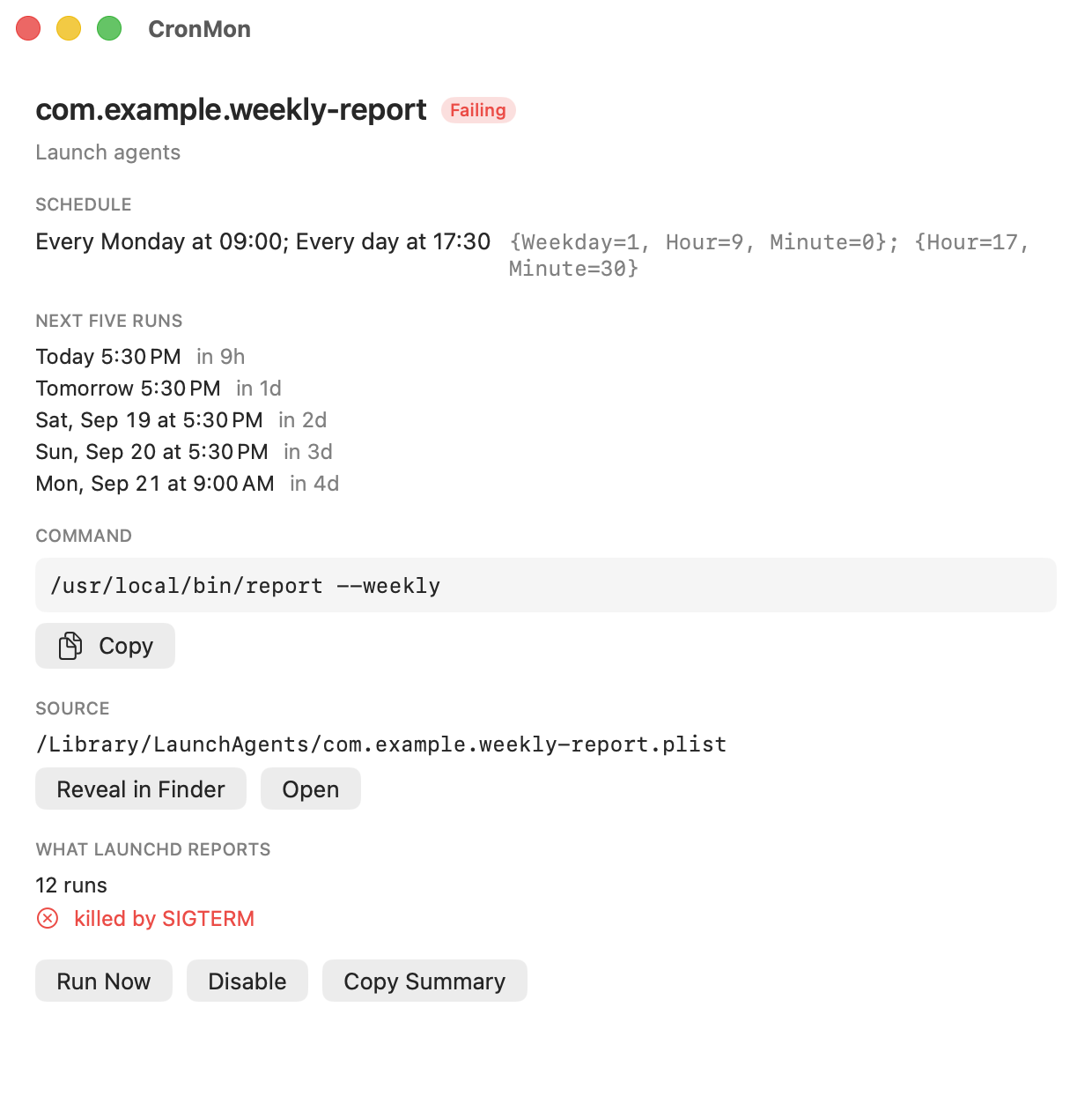
CronMon
launchd StartCalendarInterval examples
Every day at 09:30
Save as ~/Library/LaunchAgents/com.example.daily.plist:
<?xml version="1.0" encoding="UTF-8"?>
<!DOCTYPE plist PUBLIC "-//Apple//DTD PLIST 1.0//EN"
  "http://www.apple.com/DTDs/PropertyList-1.0.dtd">
<plist version="1.0">
<dict>
  <key>Label</key>
  <string>com.example.daily</string>
  <key>ProgramArguments</key>
  <array>
    <string>/bin/sh</string>
    <string>/Users/you/bin/daily.sh</string>
  </array>
  <key>StartCalendarInterval</key>
  <dict>
    <key>Hour</key><integer>9</integer>
    <key>Minute</key><integer>30</integer>
  </dict>
  <key>StandardOutPath</key>
  <string>/tmp/com.example.daily.log</string>
  <key>StandardErrorPath</key>
  <string>/tmp/com.example.daily.log</string>
</dict>
</plist>
The rule people get wrong
A key you leave out is a wildcard, not a zero. The dictionary above has no Day, Weekday or Month, so it matches every day of every month: 09:30 daily. Give it Minute alone and you get every hour, on that minute. Give it Hour alone and every minute of that hour matches, which is almost never what anyone means — always write Minute as well.
The keys are Minute (0–59), Hour (0–23), Day (1–31), Weekday (0–7, where both 0 and 7 mean Sunday) and Month (1–12). All integers. There is no list, range or step syntax: 1-5 and */15 mean nothing here.
One more, from the man page's Weekday entry: "If both Day and Weekday are specificed, then the job will be started if either one matches the current date." The two day keys OR with each other, exactly as cron's do. Day 1 with Weekday 1 is the first of the month and every Monday, never "the 1st if it is a Monday" — for that, leave one of them out.
Weekdays only, at 08:00
Because there are no ranges, several times means several dictionaries in an array:
<key>StartCalendarInterval</key>
<array>
  <dict><key>Weekday</key><integer>1</integer><key>Hour</key><integer>8</integer><key>Minute</key><integer>0</integer></dict>
  <dict><key>Weekday</key><integer>2</integer><key>Hour</key><integer>8</integer><key>Minute</key><integer>0</integer></dict>
  <dict><key>Weekday</key><integer>3</integer><key>Hour</key><integer>8</integer><key>Minute</key><integer>0</integer></dict>
  <dict><key>Weekday</key><integer>4</integer><key>Hour</key><integer>8</integer><key>Minute</key><integer>0</integer></dict>
  <dict><key>Weekday</key><integer>5</integer><key>Hour</key><integer>8</integer><key>Minute</key><integer>0</integer></dict>
</array>
The same shape covers twice a day (two dicts with different Hour values) and the first of the month (one dict with Day 1).
Every N seconds instead
For "every 30 minutes" there is a simpler key, and it does not need a calendar at all:
<key>StartInterval</key>
<integer>1800</integer>
StartInterval counts from when the job was loaded, not from midnight, so the times drift with reboots. launchd also throttles a job to one start every 10 seconds, so anything under 60 is a bad idea.
Load it and check
plutil -lint ~/Library/LaunchAgents/com.example.daily.plist
launchctl bootstrap gui/$UID ~/Library/LaunchAgents/com.example.daily.plist
launchctl print gui/$UID/com.example.daily
launchctl print is the payoff: it reports the job's state, how many times it has runs, and the last exit code, with no root needed for your own agents. Run it now to test, unload it when you are done:
launchctl kickstart -p gui/$UID/com.example.daily
launchctl bootout gui/$UID/com.example.daily
If the Mac is asleep at the scheduled time, launchd runs the job when it wakes rather than skipping it — one real advantage over cron.
Or read the schedule in English
CronMon turns a StartCalendarInterval — one dictionary or a whole array — into a sentence, shows the next five runs it produces, and puts what launchctl print reports about the job next to it: run count, last run, last exit code.