CronMon
git push from cron: Permission denied (publickey) on a Mac
The error
A job that pulls, pushes or clones over SSH runs without complaint when you paste it into Terminal. From cron it fails, and because cron mails whatever a job prints, the message turns up in /var/mail/<user>:
[email protected]: Permission denied (publickey).
fatal: Could not read from remote repository.

Please make sure you have the correct access rights
and the repository exists.
The first line comes from ssh, the rest from git. GitLab and Bitbucket print the same thing with their own host name. If you have never found that mailbox, where cron output goes shows how to read it.
Why it works in Terminal and not in cron
On a Mac, launchd starts an ssh-agent for your login session and puts its socket in SSH_AUTH_SOCK for everything launched in that session, Terminal included. You can see it:
echo $SSH_AUTH_SOCK
launchctl print gui/$(id -u) | grep SSH_AUTH_SOCK
/var/run/com.apple.launchd.Xq7bNcR2Lk/Listeners
SSH_AUTH_SOCK => /var/run/com.apple.launchd.Xq7bNcR2Lk/ListenersWhen ssh runs in Terminal it asks that agent for keys, and the agent holds your key already unlocked, either because you typed its passphrase once or because it came out of the keychain.
cron is not part of your login session. It is a system daemon, /System/Library/LaunchDaemons/com.vix.cron.plist, and it gives each job only SHELL, PATH=/usr/bin:/bin, HOME, LOGNAME and USER, plus any lines your crontab sets. There is no SSH_AUTH_SOCK, so ssh falls back to reading the key files in ~/.ssh itself. If the key has a passphrase, ssh needs someone to type it, there is no terminal to type it into, and the server gets no usable key: Permission denied (publickey).
If you have several keys, there is a second way to get the same error: in Terminal the agent offers all of them, and the one that works for this repository may not be the one ssh picks from disk.
Reproduce it in Terminal
Run the same check with cron's environment instead of yours. env -i starts from an empty environment, and BatchMode=yes stops ssh from asking for a passphrase on your terminal, which cron could not do either:
env -i HOME="$HOME" PATH=/usr/bin:/bin SHELL=/bin/sh LOGNAME="$USER" USER="$USER" \
  /bin/sh -c 'ssh -o BatchMode=yes -T [email protected]'
If that prints Permission denied (publickey) while a plain ssh -T [email protected] greets you by name, you have this problem. When a fix works, GitHub answers with Hi you! You've successfully authenticated, but GitHub does not provide shell access. — that message comes with exit status 1, which is normal.
Fix 1: a key just for the job (the reliable one)
Give the job its own key with no passphrase, and limit what that key can do instead of protecting it with a passphrase. GitHub and GitLab call this a deploy key: it is attached to one repository rather than to your account.
ssh-keygen -t ed25519 -N "" -f ~/.ssh/cron_deploy -C "cron on $(hostname -s)"
cat ~/.ssh/cron_deploy.pub
Paste the public key into the repository's settings — on GitHub, Settings › Deploy keys › Add deploy key — and tick Allow write access only if the job pushes. GitHub accepts a deploy key on only one repository; for a second repository, make a second key.
Then tell ssh to use that key for this job and nothing else. A host alias in ~/.ssh/config keeps it out of the way of your normal GitHub access:
Host github-cron
  HostName github.com
  User git
  IdentityFile ~/.ssh/cron_deploy
  IdentitiesOnly yes
and point the repository's remote at the alias:
cd ~/projects/notes
git remote set-url origin git@github-cron:you/notes.git
IdentitiesOnly yes matters for testing: without it, the test in Terminal would quietly use your agent's keys and pass, and you would only find out from cron. If you would rather not touch the remote URL, set the key on the repository instead:
git config core.sshCommand "ssh -i ~/.ssh/cron_deploy -o IdentitiesOnly=yes"Run the env -i test from above against the alias (ssh -o BatchMode=yes -T github-cron) before you rely on it. ssh checks the server's host key against ~/.ssh/known_hosts under the real host name, so if you have connected to github.com from Terminal before, the alias needs nothing more. If you have not, the job fails with Host key verification failed., because it cannot answer the yes/no question; connect once from Terminal first.
Fix 2: run it as a launchd agent instead
A launch agent in ~/Library/LaunchAgents runs inside your login session, so it gets SSH_AUTH_SOCK like Terminal does and can use your normal key. Two conditions: you have to be logged in when it runs, and the key has to be in the agent or the keychain. Store the passphrase in the keychain once:
ssh-add --apple-use-keychain ~/.ssh/id_ed25519and let ssh find it there after a restart, with this in ~/.ssh/config:
Host github.com
  UseKeychain yes
  AddKeysToAgent yes
The property list for the job itself is in launchd StartCalendarInterval examples. A launch agent also runs a job it missed while the Mac was asleep, which cron never does; cron vs launchd compares the two in full.
What not to do
- Copy SSH_AUTH_SOCK into the crontab. The socket lives in a folder with a random name, such as com.apple.launchd.Xq7bNcR2Lk, and the name changes after a restart. The job works until the next reboot and then fails the same way.
- Take the passphrase off your main key. That key opens every repository your account can reach. A deploy key opens one.
- Rely on UseKeychain from cron itself. The cron job runs outside your login session, where the login keychain is not something to build on. Use it with a launch agent, where it belongs.
- Put the token in an https:// remote URL. It ends up in .git/config in plain text and in every error message that prints the URL.
A job that keeps a repository in sync
Put the git commands in a script rather than on the crontab line, which also keeps any % in a commit message away from cron (cron treats % as a newline). cron starts the job in your home folder, so the script changes into the repository first:
#!/bin/sh
cd /Users/you/projects/notes || exit 1
git pull --rebase -q || exit 1
git add -A
git commit -qm "Auto-commit $(date '+%Y-%m-%d %H:%M')" || true
git push -q
Make it executable with chmod +x, then add a line with crontab -e that sends everything it prints to a log you will actually look at:
*/30 * * * * /Users/you/bin/sync-notes.sh >> /Users/you/Library/Logs/sync-notes.log 2>&1git commit exits with status 1 when there is nothing to commit, which is what the || true is for. /usr/bin/git is on cron's PATH, and it reads your name and email from ~/.gitconfig as usual because cron sets HOME. If the repository is in Documents or Desktop, the job also needs Full Disk Access for cron.
Or test it the way cron will run it
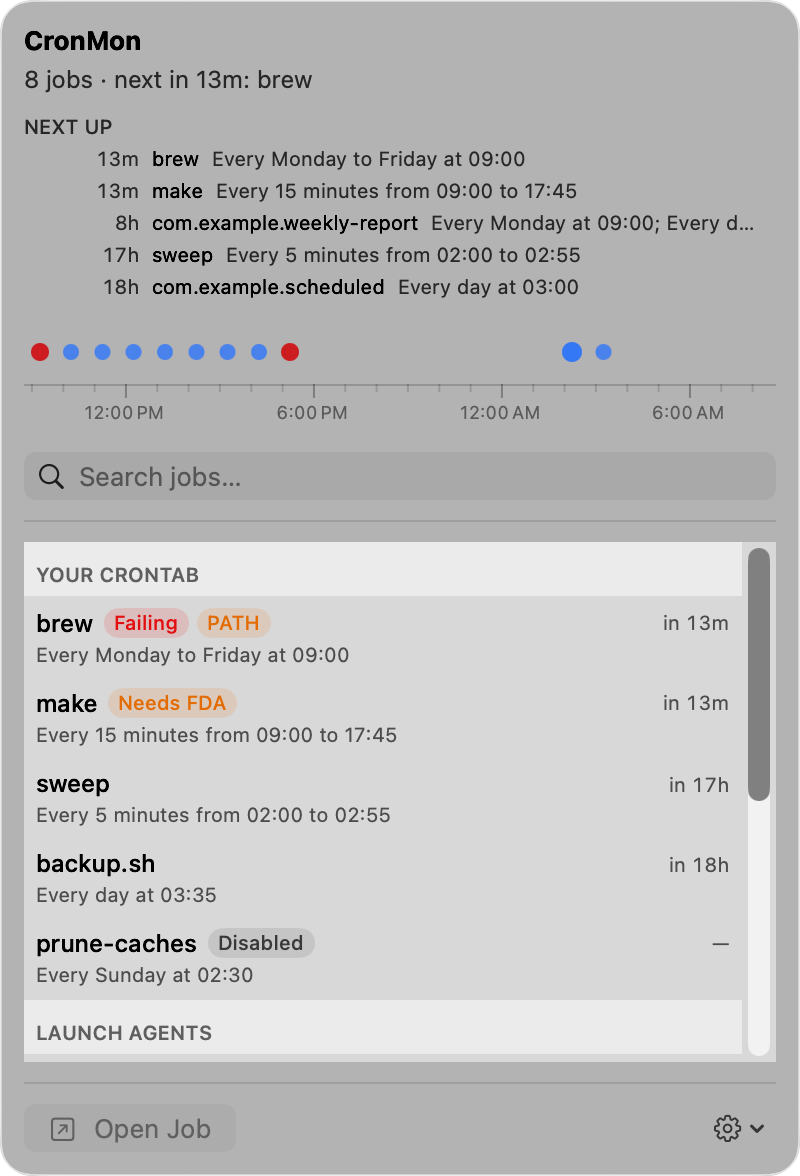
CronMon lists every job in your crontab with its schedule in plain English and its next runs. Run Now runs a cron job with the environment cron would give it — cron's PATH, HOME, SHELL and your user name, plus your crontab's own lines, and no SSH_AUTH_SOCK — and files what it printed in the job's history, so a key problem shows up there instead of at 3 a.m. Run Now is started from inside your login session, so treat a pass as a strong hint, not a guarantee. The job's history also shows the last message cron mailed for it.