CronMon
Recover a crontab deleted with crontab -r on a Mac
First: stop, and check what is left
crontab -r removes your crontab at once. On a Mac it does not ask first, and r sits next to e on the keyboard, so it is easy to do while reaching for crontab -e. Afterwards crontab -l says:
crontab: no crontab for youThere is no undo and no trash. What you can do is collect the pieces from the places a crontab leaves traces, in this order, before they are overwritten:
- A backup you or an app already made.
- Time Machine.
- Cron's own mail, which names every command that printed anything.
- Your shell history and the jobs' log files.
Do not install a new crontab or run crontab -e until you have looked: the steps below only read.
Where macOS keeps the crontab
Each user's crontab is a file named after the user in /usr/lib/cron/tabs. /usr/lib/cron is a link to /var/at, so the real location is /private/var/at/tabs/<user>. The folder belongs to root and nobody else can even list it:
ls -ld /usr/lib/cron /usr/lib/cron/tabslrwxr-xr-x 1 root wheel 12 Aug 1 17:15 /usr/lib/cron -> ../../var/at
drwx------ 3 root wheel 96 Sep 17 15:06 /usr/lib/cron/tabscrontab -r deletes the file in that folder, so there is no older copy beside it to restore. The path matters for the next step, because that is where to look inside a backup.
A backup that already exists
Look for an export you made at some point — people often have a crontab -l > something in their home folder or a dotfiles repository:
ls -la ~ | grep -i cron
mdfind -name crontab
If you use CronMon, it copies your whole crontab to ~/Library/Application Support/CronMon/crontab-backups/ before every change it makes, named with the date and time, such as crontab-20260917-145836.txt. The newest one is the crontab as it was before CronMon's last edit:
ls -lt ~/Library/Application\ Support/CronMon/crontab-backups/ | headTime Machine
Time Machine copies the system's data volume, not only your home folder, so a backup taken before the deletion normally holds your crontab at private/var/at/tabs/<user>. List the backups and pick one from before you ran crontab -r:
tmutil listbackupsIf tmutil says it requires Full Disk Access, add Terminal under System Settings › Privacy & Security › Full Disk Access and open a new window. Inside each backup is a folder for your startup disk's data volume, usually Macintosh HD - Data. The file is readable only by root there too, so use sudo to copy it out, with the backup path tmutil printed in place of the placeholder:
sudo cat "/path/from/listbackups/Macintosh HD - Data/private/var/at/tabs/you" > ~/recovered-crontab.txtThe copy ends up owned by you, because your shell writes the output file, not sudo. Read it before installing it. If the file is not in any backup, the folder was excluded from yours, and the next sections are what is left.
Cron's mail: the commands, from the job's own output
Every cron job that printed anything without a redirect left a message in /var/mail/<user>, and each message's subject line is the command exactly as it was written in the crontab:
grep '^Subject: Cron' /var/mail/$USER | sort | uniq -cThat gives you one line per job with how many times it ran. The X-Cron-Env headers in the same messages are the environment cron gave the job, including any PATH, MAILTO or SHELL lines the crontab set:
grep '^X-Cron-Env' /var/mail/$USER | sort -uThe mail does not contain the schedule, but each message is dated, and a job that arrived at 07:30 every weekday tells you its five fields. Where cron output goes has more on reading the mailbox. Jobs that redirected their output to a file did not send mail, so they will not be here.
Shell history and log files
If you ever added a job from the command line rather than in the editor, the whole line is in your shell history. zsh keeps it in ~/.zsh_history:
grep -a crontab ~/.zsh_historyThe jobs that wrote to their own log files left clues too: the scripts that wrote them are still on disk, and the files' times give away the schedule. ls -lT shows the full modification time, to the second:
ls -lT /Users/you/projects/report/cron.logA log last written at 07:30:00 that holds one entry per weekday is a 30 7 * * 1-5 job.
The unified log can tell you when the crontab was removed, though not what was in it — crontab records each list, replace and delete at the info level, which is kept only for a short time. In zsh, log is a built-in, so write the full path:
/usr/bin/log show --last 1d --info --predicate 'process == "crontab"'Restore it
Put what you recovered in a file, check it, and install it. crontab with a file name replaces the whole crontab with that file:
crontab ~/recovered-crontab.txt
crontab -l
The file has to end with a newline, and a line that does not parse makes crontab refuse the whole file with errors in crontab file, can't install. The first time Terminal writes a crontab, macOS may ask whether it can administer your computer; that is the usual prompt for /usr/bin/crontab, which writes into root's folder.
Two other ways to end up with an empty crontab are worth knowing while you are here. crontab typed on its own, with no file, reads a new crontab from the keyboard: pressing Ctrl-D installs an empty one, and Ctrl-C is the way out. And crontab file with the wrong file replaces everything with that file's contents.
Keep a backup from now on
The simplest backup is one cron job that saves the crontab it lives in. Add it with crontab -e:
0 * * * * /usr/bin/crontab -l > /Users/you/.crontab-backup.txtIt overwrites the copy every hour while the crontab exists. The moment the crontab is removed the job goes with it, so the last copy it wrote is still there, at most an hour old.
For history rather than one copy, keep the crontab as a file in a repository and install it from there, which is how editing without crontab -e works:
crontab -l > ~/dotfiles/crontab.txt
crontab ~/dotfiles/crontab.txt
To make crontab -r harder to type by accident, put a function in ~/.zshrc. It refuses -r, and before any other change it saves a dated copy to ~/.crontab-backups:
crontab() {
  if [ "$1" = "-r" ]; then
    echo "crontab -r is switched off. To really remove it: command crontab -r" >&2
    return 1
  fi
  if [ "$1" != "-l" ]; then
    mkdir -p ~/.crontab-backups
    command crontab -l > ~/.crontab-backups/crontab-$(date +%Y%m%d-%H%M%S).txt 2>/dev/null
  fi
  command crontab "$@"
}
It only covers what you type in an interactive shell; scripts still call /usr/bin/crontab directly. The confirmation prompt in crontab's source is switched off in the standards mode macOS runs commands in; COMMAND_MODE=legacy turns it back on, but changes how other commands behave too, so the function is the narrower fix.
Or let something else keep the backups
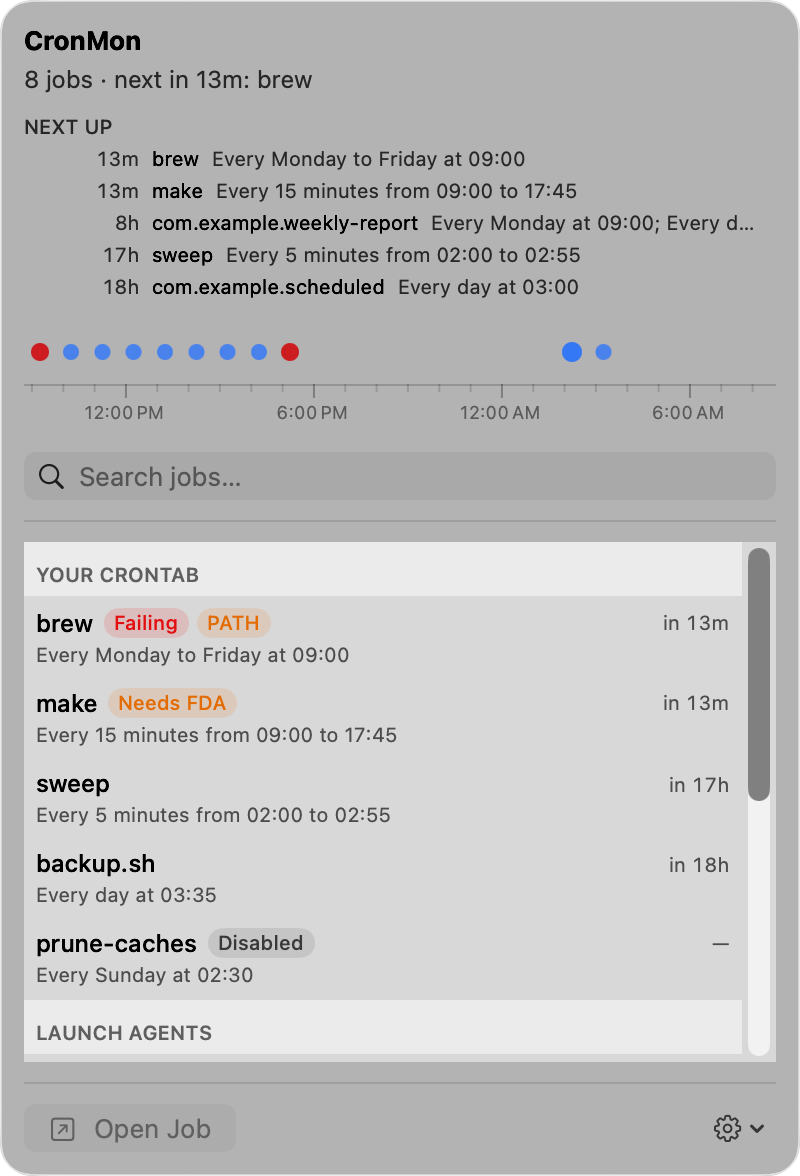
CronMon shows every line of your crontab as a job with its schedule in plain English, and every change it makes — adding, editing, deleting or switching off a job — first writes a dated copy of your whole crontab to its backup folder, then reads the result back to check it. It cannot stop a crontab -r typed in Terminal, but if it has ever edited your crontab, the copy is there.