CronMon
Cron job works in the terminal but not from cron on a Mac
Why this happens
In Terminal the command runs in zsh, as a login and interactive shell, after ~/.zprofile and ~/.zshrc have run, in the folder you changed to, with a terminal attached and whatever your session has unlocked, such as the SSH agent. Cron runs the same text as /bin/sh -c from your home directory with an environment of five variables. man 5 crontab lists them: SHELL=/bin/sh, HOME and LOGNAME from your account record (USER as well on macOS), plus PATH=/usr/bin:/bin. No profile, no terminal, nobody to answer a prompt.
So “works in the terminal” proves the command is right. It proves nothing about the surroundings, and the surroundings are what cron changes.
Run it the way cron will
Before changing anything, reproduce the failure in front of you. This starts the job from an empty environment with exactly what cron sets, from your home directory, with nothing on standard input:
cd ~ && env -i HOME="$HOME" LOGNAME="$USER" USER="$USER" SHELL=/bin/sh PATH=/usr/bin:/bin \
  /bin/sh -c '/Users/you/bin/job.sh' < /dev/null
If that fails the same way, the sections below are the suspects, in order. If it works, the difference is one only the real cron has: Full Disk Access or the percent sign, both at the end.
To see the real thing, let cron report its own environment, and make the job’s errors land somewhere you will look:
* * * * * /usr/bin/env > /tmp/cron-env.txt 2>&1
0 4 * * * /Users/you/bin/job.sh >> /tmp/job.log 2>&1
Wait a minute, read /tmp/cron-env.txt, then take the first line out again. Without the 2>&1 the error is mailed to /var/mail/$USER, which nothing on a Mac opens for you — where cron output goes covers reading it.
1. PATH: command not found
The most common difference. PATH=/usr/bin:/bin does not include /opt/homebrew/bin or /usr/local/bin, so node, Homebrew’s python3, rsync, gh and docker are not found, and the mailbox says /bin/sh: node: command not found with exit status 127. Ask your shell where the command lives and write that into the crontab, or put one PATH line at the top:
command -v node
PATH=/opt/homebrew/bin:/usr/local/bin:/usr/bin:/bin
The quieter version is a command that exists in /usr/bin too: under cron, python3 is Apple’s, not Homebrew’s, so the job runs and fails with ModuleNotFoundError. cron: command not found on a Mac has the full treatment, including version managers.
2. The shell is sh, not zsh
Cron hands the line to /bin/sh, which on macOS is bash 3.2 running as sh. Aliases and functions from ~/.zshrc do not exist, and zsh-only syntax is a syntax error. A script that starts with #!/bin/zsh and is run by its path is fine: the shebang picks the interpreter. SHELL=/bin/zsh at the top of the crontab changes which shell runs the line, not what it reads; zsh -c reads only ~/.zshenv.
3. The working directory is your home folder
Every cron job starts in $HOME. ./run.sh, python main.py, a relative config path and >> output.log all resolve against /Users/you, so the job reads the wrong file, writes a log where you never look, or fails with No such file or directory. Change directory first:
0 4 * * * cd /Users/you/project && ./run.sh >> /tmp/run.log 2>&1Or cd inside the script. A ~ in the command is expanded by sh, so ~/bin/job.sh works; in a crontab setting such as PATH=~/bin it is not.
4. Nothing from your profile
Everything exported from ~/.zprofile or ~/.zshrc is absent: API tokens, eval "$(brew shellenv)", the nvm, pyenv, rbenv and asdf lines, LANG. A job that needs a token behaves as if the variable were unset, because it is. Set what the job needs inside the script, or as literal lines in the crontab: a crontab setting is stored as written, so TOKEN=$OTHER is literal. For a version manager, use the real path that command -v prints.
5. No terminal, and nothing on standard input
Under cron tty answers not a tty and standard input is empty, so anything that asks a question gets end-of-file instead of an answer. ssh to a host it has not seen cannot ask about the host key and fails with Host key verification failed; sudo cannot ask for a password and says a terminal is required to read the password; git cannot prompt for credentials. Answer the questions ahead of time: connect once from Terminal so the host key is saved, use the tool’s non-interactive flag, and keep sudo out of a user crontab — a job that needs root belongs in root’s crontab or a launchd daemon.
6. Keys your session unlocked
The SSH agent that lets git push work without a passphrase is reached through SSH_AUTH_SOCK, which cron does not set, so the same push fails with Permission denied (publickey). The fix is a key cron can use on its own.
7. Folders macOS protects
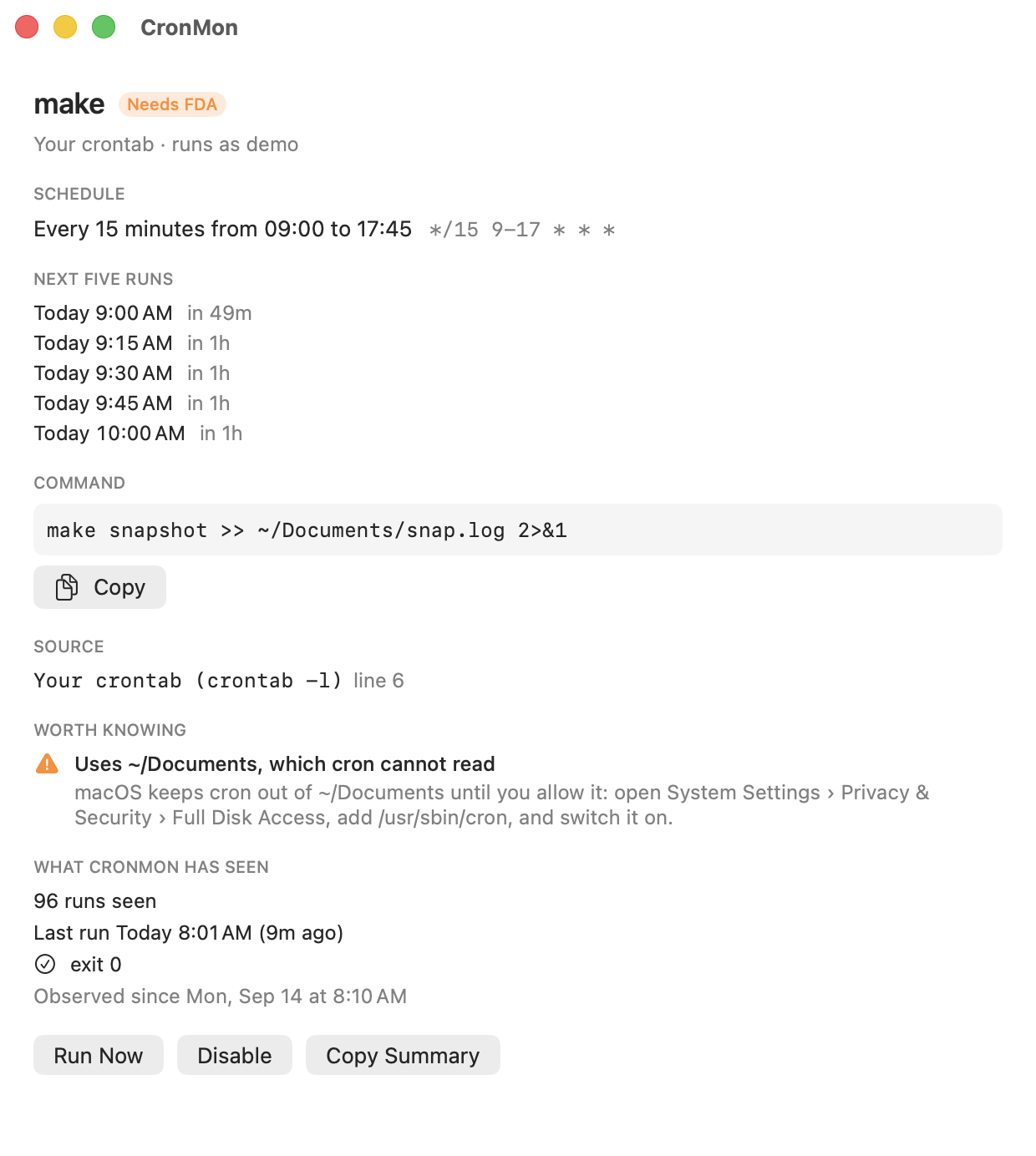
Terminal was granted access to your Desktop, Documents and Downloads the first time it asked. Cron never asks: a job that touches those folders, iCloud Drive or a volume under /Volumes fails with Operation not permitted until /usr/sbin/cron is added under System Settings › Privacy & Security › Full Disk Access. The steps are here. This one never shows up in the env -i test, because Terminal still has its own permission.
And the percent sign
date +%Y-%m-%d works in Terminal. In a crontab, cron ends the command at the first unescaped % and feeds the rest to it as input. Write \%, or move the command into a script. More on the percent sign.
A script that works in both places
Most of the list disappears if the job sets up its own surroundings instead of inheriting them:
#!/bin/sh
# /Users/you/bin/job.sh
export PATH="/opt/homebrew/bin:/usr/local/bin:/usr/bin:/bin"
export LANG=en_US.UTF-8
cd /Users/you/project || exit 1
exec ./run.sh
0 4 * * * /Users/you/bin/job.sh >> /Users/you/Library/Logs/job.log 2>&1Everything the job needs is in one file, it runs the same from Terminal, cron and launchd, and the env -i line above tests it without waiting for the clock. What remains is Full Disk Access, which no script can grant itself.
Or run it with cron’s environment from the menu bar
CronMon’s Run Now starts a cron job with the environment cron would give it — cron’s PATH, your home folder as the working directory, none of your profile — and shows the output and exit code in the job’s detail view, so a command not found or a missing file turns up in front of you rather than in a mailbox. It also checks each job for a command that is not on cron’s PATH, naming the directory it is really in, an executable that is not there, a folder that needs Full Disk Access, and output mailed nowhere useful.